Saturday, September 26, 2015

Compare Microsoft Dynamics AX for Retail, Commerce Essentials, and Retail Realm Essentials: Features and Licensing

Within Dynamics AX, there is the 'Retail' module that everyone is calling AX for Retail. Recently, there is discussion about the 'Retail Essentials' module which is the AX system with just the retail component and a simplified setup. Retail Essentials is marketed towards the small to medium sized businesses market (SMB).

While explaining the different ways to deploy and license AX for certain scenarios, things can get confusing. I was confused as well for a while :-) The goal of this post is to demystify this as well as verbalize the branding that Microsoft is using to help rid the confusion. There were two options for 'Retail Essentials in licensing

We'll look at three different examples of how to use, deploy, and license AX for Retail. Note that the code base for all of this is the exact same regardless of the scenario.

Scenario 1: Full blown AX with AX for Retail module

The licensing for AX Retail is the same as it is for any module in AX. Full access to the modules and modification to the business logic in the application object tree (AOT) are granted. This is what people would consider a 'typical' enterprise level implementation of AX. You'll see all modules but will not see a module called 'Retail Essentials' in the list.

Scenario 2: Commerce Essentials 

This module was formerly labeled 'Retail Essentials' if you looked at the modules list in AX but was re-branded.

The licensing of this is the same as full blown AX but you are able to leverage the simplicity of the Retail Essentials configuration. When the AX system is configured, you'll check the configuration keys for retail essentials and will only see one module in AX (Figure 1 below). All the functionality still exists behind the scene but, again, the system configuration and views are simplified for a targeted type of deployment. Just uncheck the 'Full feature set' check box and you'll be in Commerce/Retail Essentials mode.

Of note, from a developer perspective, you can expose and have access to anything in the back end AOT wise without violating a license agreement. This is because you are paying for a full AX license.

Note that the name in Figure 1 will be 'Commerce Essentials' here shortly to differentiate it from Scenario 3 covered below.

Why would you use this? There are a variety of reasons but one good scenario is where a company is using another ERP as their master and only using the AX Retail components in their deployment. Another could be a phase 1 where its speed to market to get AX live for a customer just in their retail operations. Or you want a simple retail solution but need modifications that aren't in the base product and they don't want to violate their license agreements.

Scenario 3: Retail Realm Essentials

The third scenario is still going to be called 'Retail Essentials'. Functionally it is the same as scenario 2 above but with the very important distinction that larger modification or exposing of other AX functionality past what comes in base will be a violation of the license agreement. So think of this as a static code base with the exception of small changes like adding fields.

The trade off is the licensing is cheaper for Retail Essentials than standard AX licenses. The licensing is purchased through a separate company for this scenario called Retail Realm but they work directly through Microsoft. This software licensing also includes Retail Realm's utilities which contain an additional cost to utilize for scenario 1 and 2.

If the company later decides to go full blown AX or enters phase two where they will need more than what this offers, they can change their licensing to Scenario 1+2 and start that process. All the code and tables behind the scenes are the same so its just a matter of licensing, configuration keys, and data setup/migration.

Why would you use this? It is an ideal solution for the SMB market. A company wanting retail in a phase one approach can also use this model as its cheaper, but they would only be allowed very simple customizations without violating their licensing agreement.

Summary
Hopefully this post shed some light on the new licensing of the AX retail platform and added some clarity to confusion!
Figure 1 - Retail Essentials view. Unselecting 'Full feature set' in retail config key will enable this functionality.

Thursday, September 24, 2015

AX 2012 Modern POS error: "Device Activiation Error Application Error"

I restarted an old Azure instance of the Modern POS (mPOS) that was once working, and when it was loaded back up, the mPOS loaded up like it had not yet been activated. I'd actually activated it and used the install setup for this instance in a previous post: Retail Modern POS (mPOS) installation and setup via AX 2012 R3 CU8 demo machine.

When attempting to reactivate it, I was getting the error 'Device Activation Error' with the detail 'Application error' (Figure 1 below).

Figure 1 - MPOS activation error: 'Device Activation Errror: Application error"'

I used the normal debugging techniques to try to figure out the issue (Event viewer and Fiddler primarily) to no avail. I also pushed all of the data from AX down to the retail channel again to make sure nothing was out of sync. Note: when using Fiddler, make sure there is a Win8 Loopback Exemption for the MPOS (Fiddler>Tools>'Win8 Loopback Exemptions>'Microsoft Dynamics Retail Modern POS application' [AS OF 9/24/2015]).

After digging more and more, I found out that a setting had been changed in AX for the channel profile of the store where the Retail server URL was reaching out to an Azure address rather than the localhost I was specifying on the Service URL for the Device Activation screen from Figure 1 above. The setup for the wrong setting is in Figure 2 below. The correct setting is in Figure 3 below as well as where you can validate what channel profile the store is using.

The setup in Figure 2 was not necessarily wrong but the setup was not complete hence the error. So I changed it back to what was working locally. To note, the MPOS was installed locally on the same instance as the AX instance. 

Hope this helps!


Figure 2 - The non-working configuration for the retail server channel
Figure 3 - The working configuration for the mPOS. This resolved the error


Thursday, June 18, 2015

Microsoft AX 2012 R3 Azure Demo machine 'Windows License is expired'

I had an issue today where I spun up a new AX 2012 R3 'Retail Essentials' machine on Azure. It was only online for about an hour or so until the machine shut down suddenly. I thought someone shut down my VM thinking I left it on.

I went into Azure and sure enough it was shut down. I restarted it and got back in.

Upon logging back in, a colleague noted in the lower right hand corner the message of 'Windows License is expired' (Figure 1 below).

Figure 1 - The windows license expired message

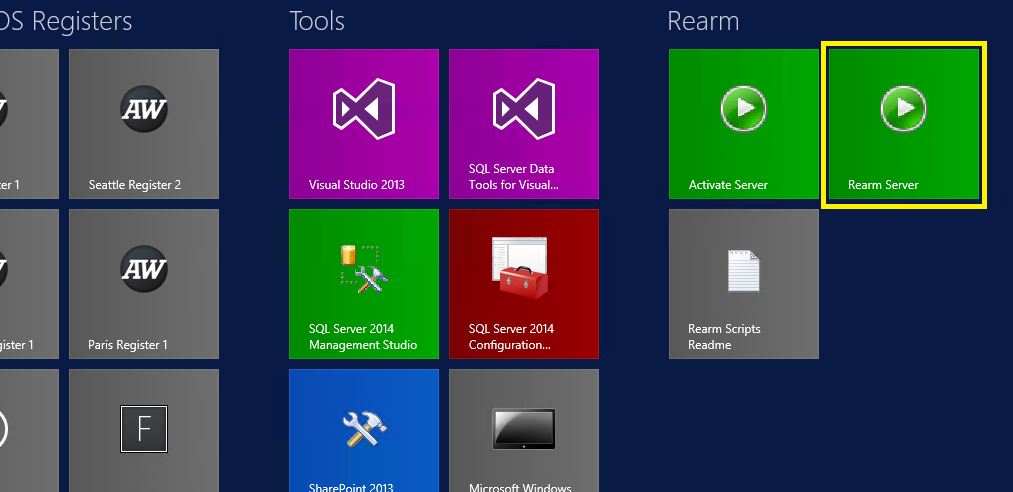
The machine was built off of a script where the server needed to be 'rearmed' so the license is no longer expired. There are two ways to do this:

  1. Click the 'Rearm Server' script in the start menu all the way to the right (Figure 2)
  2. Open the command prompt as an admin and type in 'slmgr -rearm'.
The server will restart and when you log back in, the license will no longer be expired. 

Easy to fix for the demo machines that are available out of the box. 

Special thanks to Devin @devkitt

Figure 2 - The 'rearm server' script


Wednesday, June 10, 2015

AX 4.0 Qmm, Pmf, and Pds Objects in AX 2012

For those who are looking to upgrade from AX 4.0 to AX 2012, you may be assessing the objects that exist in your AOT to determine upgrade-ability of mods, ISV solutions, etc.

Three common ISV solutions that may sit in your BUS or VAR layer will likely start with 'Qmm' (quality management), 'Pmf' (process distribution), or 'Pds' (process manufacturing). For example, the AOT object may be named 'PdsBatchAttributes'. I'm naming these three AOT prefixes specifically as I've worked with them a lot in the past. I just ran into them today and had to remember what they were and what the objects are in AX 2012.

I said 'what the objects are in AX 2012' because these modules were acquired by Microsoft and included into the base product in subsequent releases of AX. Sometimes the prefixes are changed in the code migration.

Pmf and Pds objects will have the same acronym in AX 2012 but the Qmm objects will start with 'InventTest...' in AX 2012.

This post is really specific to a certain group. I couldn't easily find this info with a quick search so I decided it would make a good post for those few people that were in the same situation as me. I'll likely find this post in future trying to remember what I was trying to remember today :-)

Thursday, June 4, 2015

How to create Dynamics AX 'keyboard shortcuts' e.g. hot keys for controls on a form

I'm back after taking a month off from blogging in May! Feels good to be back :-)

Some Microsoft Dynamics AX users need to be able to quickly do certain actions without touching their mouse. An example would be an order entry user who needs to enter hundreds of orders in a single day. Any efficiency to their process via the keyboard becomes critical. People will utilize thwa they call 'hotkeys', 'keyboard shortcuts', 'quick keys', etc

There is a way to access objects on an AX form via the keyboard. On any AX form, hit the 'ALT' key and you'll see little letter boxes pop up (dubbed 'KeyTips') which indicate which key needs to be hit to put the focus on that form control. Hitting 'Enter' on a highlighted keytip will mimic a click whether that triggers an action item, a drop down menu button, etc. If its a menu, you can use the arrow keys to navigate and hit enter. 

You can have duplicate letters on a single form as there are only 26 in the alphabet :-). As an example of this, hitting 'S' in Figure 1 after pressing ALT will hide all non-'S' key tips and only show the three controls which are associated with the 'S' keytip. The first 'S' control will be highlighted. Subsequent hittings of the 'S' key will change the focus to the other S controls for the user to hit enter on. 

TIP: Using these keyboard shortcuts with user by user layout changes in the IntelliMorph designer to achieve optimum results.

If'you have custom objects or a specific flow and would like to control what these values are, use the 'KeyTip' property on the form controls as seen in Figure 2 below

It's pretty powerful functionality. I've been able to fully create a sales order, change a number of key fields, add a few lines and release it to warehouse in an incredibly short amount of time.

Hope it helps! Enjoy!

Figure 1 - Examples of the keytips (keyboard shortcuts) on the AX sales order form

Figure 2 - The 'KeyTip' property for controls

Wednesday, April 22, 2015

Dynamics ERP RapidStart Service not starting. Service on Local Computer started and then stopped

UPDATE 4/28/2015: The RapidStart Connector service on Lifecycle Services (LCS) is down. No ETA of when it will be back up. Check out the Lifecycle Services - Configuration Manager (BETA). It's in Beta as of this writing but may achieve what you want. 
-----------------------------------------------------------
When configuring the Microsoft Dynamics ERP RapidStart Connector to use with Dynamics AX, you may encounter not being able to start the service.

It might be an easy fix and just a missing step in the configuration. The base demo machine needs the step below to work in the one I loaded. Figured I'd share my solution since I didn't see anything about it on the first page of searching for the Event Viewer error.

I later found this link which describes the process: https://technet.microsoft.com/en-us/library/dn193985.aspx  I didn't see this until after the problem was solved and this post was written since I was going based on the errors in an environment where the connector was already installed. But it is definitely a step in the process.

You may see the error in Figure 1 below which says: "The Microsoft Dynamics ERP RapidStart Connector service on Local Computer started and then stopped. Some services stop automatically if they are not in use by other services or programs" This is a common error which can mean a number of things so we need to look at the Event Viewer for more information.

Figure 1 - the Microsoft Dynamics ERP RapidStart Connector not starting

I went to the Event Viewer and found the error below (also picture in Figure 2)
Service cannot be started. System.ArgumentException: Only an absolute Uri can be used as a base address.
Parameter name: item
   at System.ServiceModel.UriSchemeKeyedCollection.ValidateBaseAddress(Uri uri, String argumentName)
   at System.ServiceModel.UriSchemeKeyedCollection.InsertItem(Int32 index, Uri item)
   at System.Collections.Generic.SynchronizedCollection`1.Add(T item)
   at System.ServiceModel.UriSchemeKeyedCollection..ctor(Uri[] addresses)
   at System.ServiceModel.ServiceHost..ctor(Type serviceType, Uri[] baseAddresses)
   at Microsoft.Dynamics.AX.AppConfig.ConnectorLoaderService.AppConfigConnectorServiceWorker.OnStart(String[] args)
   at System.ServiceProcess.ServiceBase.ServiceQueuedMainCallback(Object state)

Figure 2 - The error in the Event Viewer

Navigate to the 'Microsoft Dynamics ERP RapidStart Connector Settings' application. In my instance, I was missing the 'Dynamics AX Service Host' variable (Figure 3 below). There is also no 'Activation ID' which is required.

Figure 3 - The Microsoft Dynamics ERP RapidStart Connector Settings form

Enter the name of the server of the AOS that will be connecting to the RapidStart service, then click 'Activate' (Figure 4).

Figure 4 - Adding the Dynamics AX Service Host as AOS name and Activating

Once the process is completed activating, you'll get the Activation ID (Figure 5). The Connector Settings application will still say 'Service Stopped' until you click 'OK' on the info log that pops up.

Figure 5 - Activation successful and Activation ID attained

Then, when you click 'Ok', The Connector Settings screen will say 'Service Starting'. Then wait for the connector to say 'Service Started' (Figure 6). At that point, you're all set!

Figure 6 - The Dynamics ERP RapidStart Connector started successfully

At this point, click the 'Activation URL' that appears once the connector is completed. This will open Lifecycle services (LCS). From here, I encountered other issues but will blog about those in another post. 

Wednesday, April 1, 2015

When does my Dynamics AX version support expire? Microsoft Dynamics AX Version Support Explained

Often people will ask 'When will my Dynamics AX version no longer be supported?' This basically means, when will I be forced to upgrade or face the situation where we're 'on our own' in regards to fixing issues, security, and hotfix-able bugs.

As of 3/28/2015, there are four types of  'End Dates' when looking at the support information: 'Regular Support', 'Mainstream Support', 'Extended Support', and 'Self-help online support'.

For Regular Support, Microsoft will offer a minimum of 10 years of support for Business, Developer, and Desktop Operating System (consumer or business) Software Products. Mainstream Support for Business, Developer, and Desktop Operating Systems will be provided for 5 years or for 2 years after the successor product (N+1) is released, whichever is longer. Extended Support will exist for the 5 years following Mainstream support or for 2 years after the second successor product (N+2) is released, whichever is longer.

Extended Support is not offered for Customer software and Multimedia products with the exception of Windows Desktop Operating system which follows the Business, Developer, and Desktop Operating System Software Products policy as outlined above.

https://support.microsoft.com/en-us/lifecycle/search/default.aspx?sort=pn&alpha=dynamics%20ax

There are 6 columns that are used in determining the support information:
  1. Products Released (Figure 1)
    1. The Dynamics AX product version (overall version [3.0, 4.0, 2009, 2012] and sub-release [SPX = Service Pack 'X', RX = Release 'X'])
  2. Lifecycle Start Date (Figure 1)
    1. When the product is officially released. This is also called being "GA'ed" or General Availability-ed.
    2. Also known as when customers who aren't a part of the Microsoft 'TAP' program are able to buy and start implementing the version
  3. Mainstream Support End Date (Figure 1/2)
    1. When in mainstream support, requests to change product designs and features are considered and implemented up until this date.
    2. Security updates are applied
    3. Hardware warranty claims are honored
  4. Extended Support End Date (Figure 1/2)
    1. Product design and feature requests are no longer considered in the current release
    2. Non-security update support requests are only considered through Microsoft Premier Support
    3. Complimentary Support will not be honored except through exception
  5. Service Pack Support End Date (Figure 1)
    1. When the service packs are no longer supported
  6. Notes (Figure 1)
    1. Important information in regards to the product release.
    2. I normally skip the 'notes' sections of stuff but I'd highly recommend reading this part...
    3. If Microsoft determines they need to clarification for the above 5 points, like an extension or something, the explanation will be displayed in here
I  hope this sheds a bit of light on this common question. Just make sure to keep checking Microsoft's site to make sure you have the updated information. The information below is from a point in time and will not be updated when changes are available.
 
Figure 1 - Current support for Dynamics AX as of 3/28/2015. This may change so check for most recent updates: https://support.microsoft.com/en-us/lifecycle/search/default.aspx?sort=pn&alpha=dynamics%20ax!!!
 
Figure 2 - Features of the various types of support