Showing posts with label Microsoft. Show all posts

Tuesday, December 27, 2022

D365 Commerce making changes to Adyen payment and service connector considerations

 Hello all, 

I wanted to make a quick note about changing Adyen account and payment connector settings within Dynamics 365 Commerce. From time to time, you'll need to make changes to account or payment connector settings in Dynamics 365 Commerce as a result of an upgrade.

The way that things work, you can make these changes but you need to make sure you invoice all orders and capture payments (so the system shows no outstanding funds due), and then change the settings. 

By failing to do that, you'll run into an incongruence of payment settings between the previous authorizations with the old configs vs the new configs using the old authorizations. 

This will obviosuly be a very big trick when you look into online ecomm orders coming in bound, orders in multiple statuses, etc. You almost need a hard stop on new orders being authorized for payments, or temporary change the process to collect payments up front, which is usually not possible. 

So looking at this dilemma, it might seem unrealistic to making any config changes to the Adyen Dynamics 365 Commerce settings. But what if you have to and can't stop the flow of orders?

For one potential solution, you could create a tool that can be used to update the current open authorizations after the config change is made. This will allow you to make the change in PROD and then create new auths as needed. For open authorizations after that change is made, apply your tool to update those open records to accommodate the new configs. 

If you wait and those open auths expire, sometimes as early as 7 days, you'll have to recapture the payment either manually or via a reauth if you have card on file.

So the lesson here is to get ahead of correcting the open auths if you can't put a hard stop to your order/payment flow. 

Hopefully this post will help proactive dialog for those who encounter this uncommon, hopefully rare scenario. 

Friday, November 11, 2016

Personal Windows OS toolbar overlaying full screen RDP session issue

This is a basic one folks but addressed something that was driving me NUTS.

I was using Remote Desktop Connection (RDP) and had the bottom of the screen cutoff by my actual physical desktop toolbar even when in full screen (Figure 1 below).

The fix, for me at least, was to go into the RDP settings, move the sizing from full screen to a fixed size, then move the slider back to the full screen setting (Figure 2 below)

I literally was doing all sorts of things before this to fix the issue with no success. It was the only thing that consistently addressed the issue.

Figure 1 - My desktop toolbar overlaying the RDP full screen session

Figure 2 - Adjust the display configuration

Wednesday, October 26, 2016

A guide to debugging the Microsoft Dynamics AX Debugger

Debugging the AX Debugger can be a little bugger'. Here are a few things to check for as to why you aren't able to debug some code.
  • Make sure your user is added to the Debugger group on the instance your in
    • IMPORTANT: You'll want to log out and back into your instance. This means actually logging out and not just close and reopen AX and/or the RDP session. 
    • This might be the issue if the debugger pops up but is greyed out and AX seems to have acknowledged the breakpoint but breezed right past it
  • Make sure your breakpoints are set and enabled and not 'disabled'. 
    • There is a button next to the set breakpoints in the toolbar that allow enable/disable
  • Assure the code where your breakpoint is is actually being hit.
    • This is a make sure its plugged in type response but you'd be surprised how common it is...
  • In your user options under Development tab, make sure the 'Debug mode' is set to 'When Breakpoint'
  • The breakpoint might be set in a spot that the debugger can't hit. For example, the clicked method on a button.
    • adding a line of code for 'breakpoint;' rather than using the red dot breakpoints will allow you to debug these methods
  • If the code is running in the CIL, you may need to make the code run on the client. 
    • Go to your user options > 'Development' tab and uncheck 'Execute business operations in CIL'. 
  • If the code is running in batch, you'll need to debug this process via Visual Studio. The breakpoints in AX are for client processes only generally. 
  • You may need to adjust the breakpoint check boxes in the Dynamics AX Configuration Utility under the Developer tab. There are two settings there: 'Enable user breakpoints to debug code in the business connector' and 'Enable global breakpoints to debug code running in the Business Connector or client'
  • Check the AOS debugger settings. Dont remember what this check box(es) are called but there is something on the AX AOS config that can be a factor. 

Sunday, September 4, 2016

Issue with Excel word being replaced (HSA converted to HAS automatically)

I was having an issue typing HSA in Excel and it being constantly 'corrected' to 'HAS'. I literally could not type HSA, which stands for health savings account (HSA).

You can correct this by two steps: 1) Create the word in the custom dictionary and 2) remove the autocorrect option for HSA/HAS combination.

Step 1 - Add HSA to the custom dictionary
  1. In Excel
  2. File > Options (Figure 1) > Proofing > 'Custom Dictionaries' 
  3. Select the dictionary you'd like to add the word to (Figure 2)
  4. Click 'Edit word list'
  5. enter 'HSA' in the word field 
  6. Click 'Add' 
  7. Click 'Ok'

Step 2 - Autocorrect removal for HSA/HAS
  1. In Excel
  2. File > Options (Figure 1) > Proofing >  'AutoCorrect Options'
  3. Type the word you are trying to type (HSA for me) in the 'Replace' field
  4. Look for the replace/with combination you are hitting (HSA/HAS for me)
  5. Highlight the record, click 'Delete', then click 'Ok'

Figure 1

Figure 2 

Figure 3

Wednesday, August 31, 2016

AX POS Error: Step 4: Creating Device Token failed

When I was trying to activate a cloud POS (CPOS) terminal, I was getting the error: 'Step 4: Creating Device Token failed' or something similar to that. I didn't take a screen shot of the image unfortunately. But it was similar to that.

The error is because the CPOS wasn't able to hit the AX '7' database. The CPOS uses a single AxDB database, in my case in the 'all in one' server, which the CPOS needs to have access to.

The environment was the AX 7 Update 1 using upgraded data from the AX 7 RTW release.

The Update 1 data changed in regards to some setup information. Event Viewer gave me some information into this essentially saying that the axruntimeuser wasn't able to access the DB. This, among other things, led me to believe the channel database setup was wrong.

To reconfigure the channel database 'connection string', you'll need the connection string (duh). I used Visual Studios Server explorer to create a connection to the database with the AxDB database for the CPOS, then clicked 'Properties'. The connection string will be right there. (Figure 1)

Paste this value into the appropriate connection string (Figure 2). Mine was the 'Default' one. Run the 1070 job (I think that's the channel job... if not, run that one).

You'll need to cycle the Retail Server application pool also (Figure 3 below).

There were a few other random settings I had to change from RTW configs to update 1 but the above was the main one. I think there were only 3-4 other places.

Hopefully this helps someone else jump past this issue!


Monday, August 29, 2016

Project Maderia Updates

Project Madeira is a new Office 365 product which is aimed as a SMB (Small-Medium sized Business) ERP offering based on Microsoft Navision (as you will see from the default demo Cronus data :-) )

Its still in Beta and not officially implemented as a 'Release to Web' (RTW) version (as of August 2016) so there are constantly changes being made on a monthly basis. It can be hard to keep up, especially if you are working on ISV extensions to the product.

Make sure to book mark the below link to see an actively updated list of what is new to the product on a month by month basis. Very informative!!

What's New in Project "Madeira"

Thursday, August 11, 2016

AX 2012 R3 Retail Error when running a retail distribution job: 'Failed to create a session; confirm that the user has the proper privileges to log on to Microsoft Dynamics'

[Going through old notes in my retail folder and posting here]
I was attempting to run a Retail Data Distribution job in AX 2012 R3 to a POS and got the below error. It was 'Failed to create a session; confirm that the user has the proper privileges to log on to Microsoft Dynamics'. I recently ran the generate classes and create staging tables functions so there was new code in place. 

I did a little debugging as the error was not retail specific and it was odd it was being thrown where it was. Sure enough, the CIL wasn't recognizing my current user which is why it wasn't working... Obviously this isn't a bug but rather something within AX. Come to find out, I had previously built the classes and staging tables for the jobs in the USR layer, deleted them, then rebuilt them in the proper layer/model. That threw some issues into the system.

A compile, usage data clear allowed me to get the new error in Figure 3. Obviously that told me to do a full CIL build. I did that, problem solved!

 Figure 1 - The error in question

 Figure 2 - Line 51 is where the error was being thrown.

Figure 3 - The actual error in question. Its actually quite helpful!

Tuesday, August 9, 2016

Dynamics AX 2012 R3 Retail Error when running Distribution schedule job: 'Class RetailCDXChannelSpecificData_AX63 does not exist

Are you getting an error when attempting to run an AX 2012 R3 Retail data distribution scheduler job (Figure 1)? Is it 'Class RetailCDXChannelSpecificData_AX63 does not exist'? Does it look like the one in Figure 2 below? Do you like things actually working correctly? Hey, friend! If your answer was Yes to the questions above, I might be able to hook you up.

To fix the issue, navigate to the Retail Channel Schema (hint: its on the Scheduler job setup in the field 'Retail Channel Schema'. You can right click on this field for the job in question and go straight to the record and form to generate those magic classes the error has told you all about.

NOTE: This process will generate code in AX AOT so you'll want to be in the correct layer/model for this process

When you click 'Generate classes' (Figure 3), you'll be prompted to what it will do (Figure 4) so make sure you are in the right layer and it will generate the classes you need as you'll see in the AOT (Figure 5).

You will need to do the Incremental CIL build after this or you may get weird issues, but I always do a full as I still don't trust the incrementals from earlier experiences.

Figure 1 - Running the Data Distribution Scheduler job manually

Figure 2 - A delightful little nugget of goodness raining on your parade

Figure 3 - The 'Generate classes' button in the Retail Channel Schema form

Figure 4 - The confirmation for generating the scheduler job classes

Figure 5 - The classes generated in the AOT

Figure 6 - Go grab a beer and celebrate. Or get back to work...


Monday, August 8, 2016

Dynamics AX 2012 R3 Retail Error when syncing metadata: 'The table [Table] does not exist'

You may see the error 'The table NoSaleFiscalDocumentTransaction_BRT does not exist' when attempting to sync the metadata via the 'Sync Metadata' (Figure 1) in AX 2012 R3 Retail (Figure 2)

This is because the temporary table for the tables in question need to be run. The '...T' at the end of the error (.._BRT in this case) indicates its temporary for the main table. The tables where these are created are determined through the subjobs for that PJob. So you'll need to do this when you add tables to sync back/forth between the POS and AX.

You generate these temporary tables by clicking on the 'Create staging table' button in the scheduler job form (Figure 3). You only need to do this for 'Pull' type schedule jobs. You can determine which these are via the 'Is Upload' check box. Best practices dictates that your Pjobs should always be named with the prefix 'P-...' if the 'Is Upload' box is checked.

NOTE: When you click 'Create staging table', there are AOT objects created. Make sure you are in the correct layer/model where you want these created.

Upon clicking on the 'Create staging table' button, you will see the information in Figure 4. The tables are created in the AOT. You can verify if you want. Then go back and hit the 'Sync metadata' button and you'll see the successful sync in Figure 5.

Figure 1 - 'Sync metadata' button on the Retail Scheduler parameters

 Figure 2 - The Error thrown when attempting to sync the metadata

Figure 3 - The P-Job with 'Create Staging table' button

Figure 4 - The TempDB tables created from 'Create Staging table' button

Figure 5 - What you see when you successfully sync metadata

Wednesday, July 13, 2016

Project Madeira Extensions: Extension Marketplace (Microsoft AppSource)

You may need functionality considered 'extra' when using Project Madeira for your implementation. 'Extras' can be considered functionality that is 1) not base to the Project Madeira application and 2) may be business vertical specific.

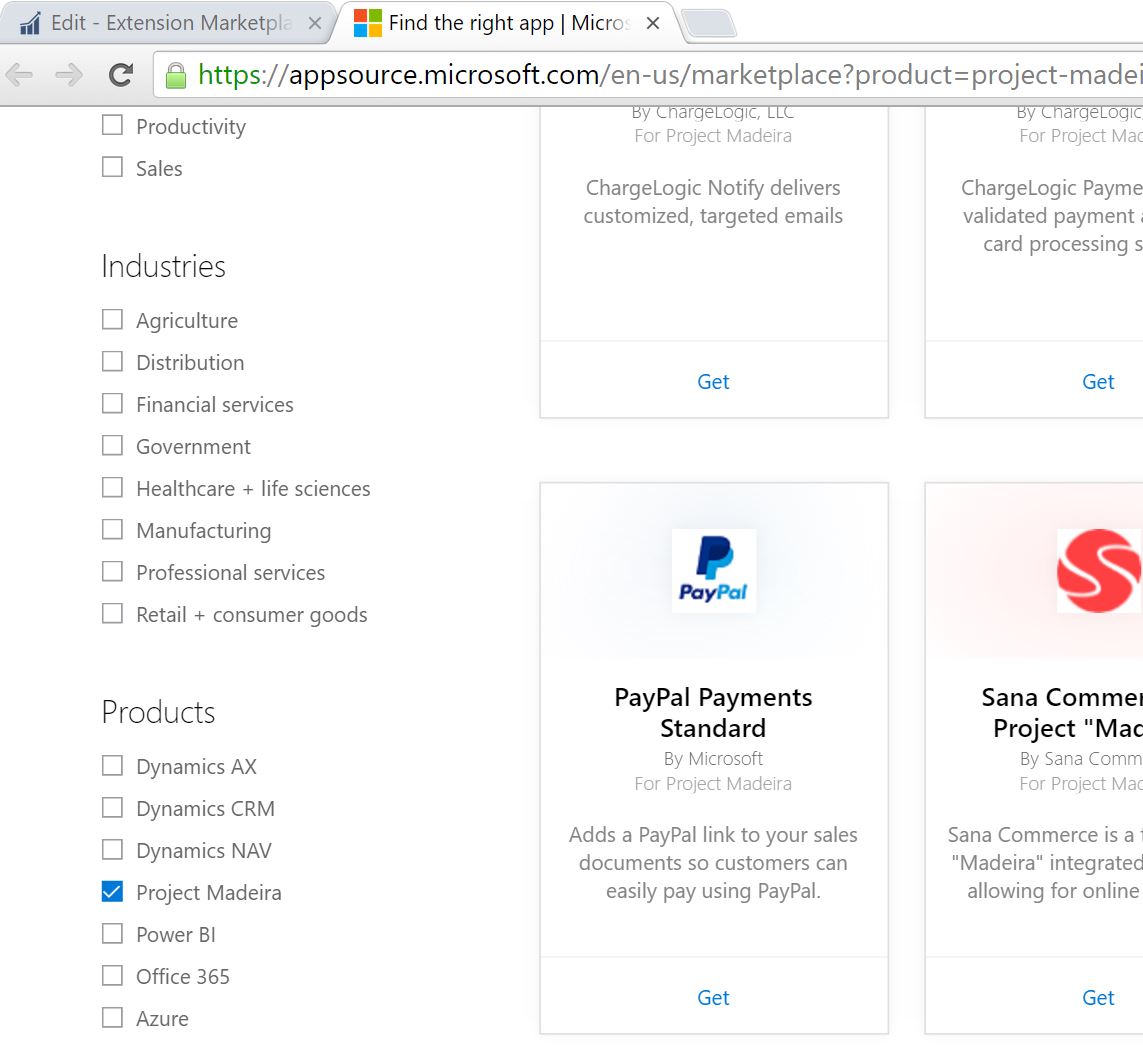
You can 'extend' your Project Madeira applications by implementing these 'extensions' to your code base. Do this from the main menu in Figure 1 below. From there, you can view the 'Extension Marketplace', as well as navigate to AppSource directly and auto-filter the apps by app (Figure 2). Once in AppSource, you can see all the available apps you can add to your application (Figure 3). 

Figure 1 - Adding extensions to your code base

Figure 2 - the apps you can browse from the Microsoft AppSource store

Figure 3 - The navigation to AppSource, filtered for the specific application
 

Sunday, July 10, 2016

Project Madeira

Microsoft has a cloud offering in the SMB space called Project Madeira. It is currently in Beta. There is not estimation as to when it will be Released To Web (RTW). Read the welcome to Project Madeira here: https://madeira.microsoft.com/en-us/documentation/madeira-get-started/ 

You can download the app to your Office365 account. As of July 2016, its fairly basic but it should expand its functionality down the road. There is no plans for on-premise deployment.

Project Madeira is based on Navision and even says 'Navision' when you get a permissions error trying to log into the application [see below].


I see this being positioned into the Quickbooks, GnuCash (my open source preference), and Peachtree area. I can see it eventually going the way of NetSuite and other Cloud-based ERP solutions once the mobile story is more enhanced and functionality is increased.

The program is still in beta so this could change radically by the time the product is released, but I figured it would be good to document where the product is at currently.

Here is the list of actions you can do to date:

  • Business Areas
    • Finance
    • Banking
    • Sales
    • Purchasing
  • Users/General
    • emails/logging
    • Office Addins
  • Financials
    • Dimensions
    • Account Schedules
    • COA and GL
    • Receivables
    • Automatic Paymnets and reconciling bank accounts
    • Collections
    • Sales Tax
    • Payables
    • Payments
    • Bank accounts
    • year closing
  • Sales
    • Create Quotes/Sales
    • Invoicing
    • Selling products
    • Correct or cancel unpaid invoices
    • Sales returns/cancellations
    • Create customers
  • Purchasing
    • Create POs
    • Purchasing products
    • Correct or cancel unpaid purchase invoices
    • Purchase returns for cancellations
    • Create Vendors
  • Inventory
    • Create Items
    • Adjust inventory
    • Adjust item costs
    • Post inventory cost to GL
  • Relationship Management 
    • Dynamics CRM connection
    • Marketing and Contact Mangement Setup
    • Contacts
    • Interactions
    • Segments
    • Sales Opportunities
  • Across Business Areas
    • Number Sequences
    • Extended Texts
    • GL Management
    • Send Documents by Email
    • Use Allocation Keys in General Journals
    • Schedule a report to run
    • Report Layouts
    • Workflows
    • Incoming Documents (Manage/Setup/Process)

Wednesday, July 6, 2016

How to: Create a new Yammer Group on Yammer

From time to time you will need to create a 'group' within your organization. That 'group' will need to talk. I'd suggest doing two things to help in communication: 1) Create a distribution group via email and 2) create a Yammer group. There are more yes, but these two are key.

If you need to create a Yammer Group:
  1. Navigate to Yammer
  2. Once in your group, you should see a grey bar on the left hand side
  3. At the bottom of that bar, you should see a plus sign (+) and 'Create a new group'. 
  4. Click and enter the name of the group
  5. Add the user to the group. 
  6. Let people know in either hte yammer or email distribution group to invite whoever else might be relevant. 

Figure 1 - 'Create a new group' under the Office 365 Yammer Group

Sunday, June 26, 2016

Dynamics AX User Group (AXUG) Twitter Promotion Optimization

Here are a few ways to make sure your Dynamics AX User Group (AXUG) tweets on Twitter are viewed by the most people possible:
  1. When tweeting about your chapter, include: @AXUG and #AXUG.
  2. Follow other AXUG chapter leaders and members of Dynamics Communities
  3. Use the following hashtags
    1. #MSDynAX - Microsoft Dynamics AX products
    2. #AXUG - AX User Group Hashtag
    3. #AXUGSummit - The AXUG Summit official hashtag
    4. #AXUG<YourCity> - To link specific posts to your chapt
    5. Use a # that links to the key topics in your tweets such as #EDI, #Retail, #Manufacturing, #SupplyChain, etc
    6. Include other twitter users at the meeting in the tag via '@'
Make sure to follow Scott Steinmetz on twitter at @ScottAXUG

Tuesday, June 21, 2016

Dynamics AX R3 very large text in modules in RDP

When logging into Dynamics AX 2012 R3 (or other versions) via RDP, you'll sometimes see very large text in the modules and object names (Figure 1). The big text is annoying and doesn't really make navigation a delightful experience.

You can fix it through the below:
  • Right click on the Dynamics AX icon on your desktop
    • If you don't have an icon, do the following:
      • Go to the Start menu
      • Type Dynamics AX
      • Right click on the icon in the search window results
      • Click ' Open File Location'
      • Create a shortcut from that Dynamics AX program link to the desktop (right click and create shortcut to desktop, copy paste, etc)
  • Select 'Properties' (Figure 2)
  • Under 'Compatibility' tab, check the 'Disable display scaling on high DPI settings' checkbox (Figure 3)
  • Reopen Dynamics AX via this icon (Figure 4)
Figure 1 - AX with 'big' navigation names

Figure 2 - Right Click on AX icon and select properties

Figure 3 - 'Compatibility' tab and 'Disable display scaling on high DPI settings' box

Figure 4 - The corrected AX navigation

Thursday, June 18, 2015

Microsoft AX 2012 R3 Azure Demo machine 'Windows License is expired'

I had an issue today where I spun up a new AX 2012 R3 'Retail Essentials' machine on Azure. It was only online for about an hour or so until the machine shut down suddenly. I thought someone shut down my VM thinking I left it on.

I went into Azure and sure enough it was shut down. I restarted it and got back in.

Upon logging back in, a colleague noted in the lower right hand corner the message of 'Windows License is expired' (Figure 1 below).

Figure 1 - The windows license expired message

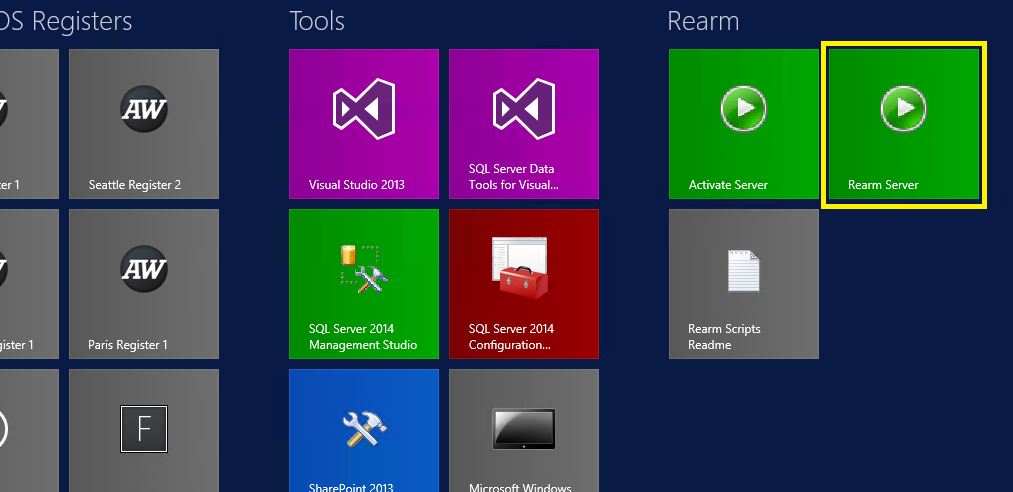
The machine was built off of a script where the server needed to be 'rearmed' so the license is no longer expired. There are two ways to do this:

  1. Click the 'Rearm Server' script in the start menu all the way to the right (Figure 2)
  2. Open the command prompt as an admin and type in 'slmgr -rearm'.
The server will restart and when you log back in, the license will no longer be expired. 

Easy to fix for the demo machines that are available out of the box. 

Special thanks to Devin @devkitt

Figure 2 - The 'rearm server' script


Wednesday, April 1, 2015

When does my Dynamics AX version support expire? Microsoft Dynamics AX Version Support Explained

Often people will ask 'When will my Dynamics AX version no longer be supported?' This basically means, when will I be forced to upgrade or face the situation where we're 'on our own' in regards to fixing issues, security, and hotfix-able bugs.

As of 3/28/2015, there are four types of  'End Dates' when looking at the support information: 'Regular Support', 'Mainstream Support', 'Extended Support', and 'Self-help online support'.

For Regular Support, Microsoft will offer a minimum of 10 years of support for Business, Developer, and Desktop Operating System (consumer or business) Software Products. Mainstream Support for Business, Developer, and Desktop Operating Systems will be provided for 5 years or for 2 years after the successor product (N+1) is released, whichever is longer. Extended Support will exist for the 5 years following Mainstream support or for 2 years after the second successor product (N+2) is released, whichever is longer.

Extended Support is not offered for Customer software and Multimedia products with the exception of Windows Desktop Operating system which follows the Business, Developer, and Desktop Operating System Software Products policy as outlined above.

https://support.microsoft.com/en-us/lifecycle/search/default.aspx?sort=pn&alpha=dynamics%20ax

There are 6 columns that are used in determining the support information:
  1. Products Released (Figure 1)
    1. The Dynamics AX product version (overall version [3.0, 4.0, 2009, 2012] and sub-release [SPX = Service Pack 'X', RX = Release 'X'])
  2. Lifecycle Start Date (Figure 1)
    1. When the product is officially released. This is also called being "GA'ed" or General Availability-ed.
    2. Also known as when customers who aren't a part of the Microsoft 'TAP' program are able to buy and start implementing the version
  3. Mainstream Support End Date (Figure 1/2)
    1. When in mainstream support, requests to change product designs and features are considered and implemented up until this date.
    2. Security updates are applied
    3. Hardware warranty claims are honored
  4. Extended Support End Date (Figure 1/2)
    1. Product design and feature requests are no longer considered in the current release
    2. Non-security update support requests are only considered through Microsoft Premier Support
    3. Complimentary Support will not be honored except through exception
  5. Service Pack Support End Date (Figure 1)
    1. When the service packs are no longer supported
  6. Notes (Figure 1)
    1. Important information in regards to the product release.
    2. I normally skip the 'notes' sections of stuff but I'd highly recommend reading this part...
    3. If Microsoft determines they need to clarification for the above 5 points, like an extension or something, the explanation will be displayed in here
I  hope this sheds a bit of light on this common question. Just make sure to keep checking Microsoft's site to make sure you have the updated information. The information below is from a point in time and will not be updated when changes are available.
 
Figure 1 - Current support for Dynamics AX as of 3/28/2015. This may change so check for most recent updates: https://support.microsoft.com/en-us/lifecycle/search/default.aspx?sort=pn&alpha=dynamics%20ax!!!
 
Figure 2 - Features of the various types of support

Friday, March 6, 2015

AX 2012 R3 Product Attributes Not Showing up

For some reason, when it comes to adding attributes to products, I can never remember how to get them to actually show up under the products (Figure 1).

Its easy to setup the attribute types, then the attributes, then assign the attributes to attribute groups but now how do you make those show up?

This is a quick post to help me (yes me!) remember that the product attributes should be assigned to the procurement categories hierarchy (Figure 2), not the retail product category hierarchy or the one used for sales. I always set everything up and go to enter the data and always get a punch in the face when they don't show up (Figure 1).

So add the products and product attributes to the appropriate spot in the procurement categories and you're all good!


Figure 1

Figure 2


Monday, November 17, 2014

10 tips for the Microsoft Dynamics AX Technical Conference 2015

Out of all of the conferences and training in a given year, the technical conference is the best one by far. This is just my opinion but I've gone to them year after year and this is by far the best conference event of the year. I'd HIGHLY recommend going.

It is February 2nd-4th, 2015 (Monday-Wednesday) in Seattle, WA. There will be post event training sessions the 5th-7th (Thursday-Saturday) but they have not been announced yet. Attendance is an extra fee for these. NOTE: This is at the Washington State Convention Center in downtown Seattle, not in Bellevue or Redmond campus like past years.

Registration is now open: http://www.microsoft.com/dynamics/AXtechconference/

You don't have to be a technical person to attend. There are functional sessions there as well. And I personally think all functional people should be familiar with the technical aspects of AX just like technical people should be familiar with functional aspects.

Its getting larger and larger every year and has switched venues over time because the sessions get so full. Not sure capacity this year but it may sell out as it gets closer to the event.

To note, that Sunday before is Super Bowl Sunday. There is an MS watch party event if you want to attend that. I was a Bronco's fan in Seahawks territory last year so I opted to not attend the party and go to a brewery instead. Denver got trounced but I got a number of free things from the bar as everyone was very friendly there and felt bad. Seattle is a great city! I'm hoping its not a Broncos/Seahawks rematch. Or do I?

10 tips for attending the MS Dynamics Tech Conference 2015
  1. Register early for the event. You can save money if you book early. Most won't dispute the value of this conference but its a factor of cost vs benefit. Booking early reduces the cost. Plus it sells out so you want to make sure you can go. I believe you can save $300 off registration if you register before December 10th, 2014.
  2. Book the hotel early. They'll fill up quickly and the rates can rise.  
  3. Try to stay in downtown Seattle or as close as you can to the Washington State Convention Center. That's where most people will go out after the events and you never know who you'll run into. The best networking happens outside of the conference and the largest concentration of AX people will be by the convention center. 
  4. Go to the post training events. Last year I went to an R3 retail hands on lab session and it was awesome. At times, you can get one on one time with the product team and you can ask why certain things were done certain ways and provide feedback. Assuming the 2015 sessions will be similar to 2014, you don't want to miss it!
  5. Take great notes during the session. You may remember things that night from the sessions you were in but after the whole week, you'll be hazy about the first day. There is just too much info. If you're in a group, try to use a shared OneNote notebook so you can see what others learned during their sessions. Divide and conquer!!
  6. Pictures are allowed during the sessions but don't post ones that they ask you not to share on social media. Keep those for your notes. The pictures will help give context to notes you may take. I tend to remember things through images so if I read written notes, I may forget details that a picture will bring back.
  7. Pick your schedule ahead of time, but don't be afraid to pull an audible. You may be in a session and they talk about something that peaks your interest you were unaware of (like SQL AlwaysOn for example). If you stay strict to your plan, you could be missing out. Follow your gut. Often the unplanned sessions end up being the most valuable ones.
  8. Bring a list of questions or topics your organization has struggled with. It's easy to lose track of your work tasks with so many shiny, new features being shown to you. The list will help you concentrate on what features and strategies you can employ now or in the future. There will be a number of experts there both presenting and in the crowd who would likely be able to help.
  9. Don't be afraid to talk to people. Networking is important in an community as 'small' as the AX group is. After the sessions, there will be a lot of opinions from technical and functional people alike in which you can learn a lot from. Additionally, be ready to share your own experiences and original opinions. Having people to bounce ideas and thoughts off of helps enhance the sessions' presented content.
  10. Don't party too hard in the evenings. It's tempting and fun I know. Especially with so many other AX enthusiasts in attendance but you'll pay for it in the AM. The sessions go fairly fast with a lot of information. If you feel like you got tackled by a sumo wrestler, the sessions might as well be in a foreign language.
Hope the above tips helps people! Looking forward to seeing everyone there!