Please shoot me an email with your AX tech questions and I'll see what I can do about answering them. If I answer it, unless you request otherwise, I will use it as a post on this website.
I'm looking for new things to fill my blog up with. I have tons but I want to learn some fun stuff that I may not have in my toolbelt but that would increase my arsenal of stuff I use for clients as well as teaching. I'm an information hog.
I can't guarantee a fast response unless you have talked to me before and I gave you alternate contact information that I check more often.
So... PLEASE ASK ME A QUESTION!!
Thursday, February 10, 2011

Use X++ wildcard (LIKE and NOT LIKE) in X++ select statement
If you want to use wildcards in an AX X++ select statement (*), you will have to use the LIKE command. The following select statement will find all captions in the batch tasks (BatchHistory) table.
For x++ select statements:
select firstOnly batchHistory
where batchHistory.Caption LIKE "*Test*"
For x++ queries:
queryBuildRange.value(*Test*);
Note the LIKE instead of a '==' and the wildcards inside of the quotations. All other combinations of wildcard usage will work here. This is the same functionality as what the users would put in the grid filtering(eg. '*TEST*' in the caption field filter on the batch tasks form).
However, if you want to find all Captions that do not have the word Test in them (NOT LIKE, !LIKE), you will have to modify the above example slightly.
For x++ select statements:
select firstOnly batchHistory
where !(batchHistory.Caption LIKE "*TEST*");
For x++ queries:
queryBuildRange.value(!*Test*);
Note the "!(" and ")". Again, this is the same functionality as what the users would put in the grid filtering(eg. '!*TEST*' in the caption field filter on the batch tasks form).
I hope it helps you out!
For x++ select statements:
select firstOnly batchHistory
where batchHistory.Caption LIKE "*Test*"
For x++ queries:
queryBuildRange.value(*Test*);
Note the LIKE instead of a '==' and the wildcards inside of the quotations. All other combinations of wildcard usage will work here. This is the same functionality as what the users would put in the grid filtering(eg. '*TEST*' in the caption field filter on the batch tasks form).
However, if you want to find all Captions that do not have the word Test in them (NOT LIKE, !LIKE), you will have to modify the above example slightly.
For x++ select statements:
select firstOnly batchHistory
where !(batchHistory.Caption LIKE "*TEST*");
For x++ queries:
queryBuildRange.value(!*Test*);
Note the "!(" and ")". Again, this is the same functionality as what the users would put in the grid filtering(eg. '!*TEST*' in the caption field filter on the batch tasks form).
I hope it helps you out!
Wednesday, February 9, 2011
AX 2009 Batch Job Stuck In Executing
Having a batch job stuck in the Executing status in AX 2009 is a pretty common thing for me to get a call about when a customer is upgrading or doing an implementation.
One of the first things that I check is to make sure that the batch job that is stuck in executing has all tasks set to run on the server. You can check this out by going to Basic -> 'View Tasks' button -> 'Run location' field. If it is set to 'client', that is the issue. The next step is determining why this happened.
Check 1: Check the menu item (probably an Action or Output) and make sure the 'RunOn' property is set to 'Server'. If not, change it.
Check 2: Find the class where the 'runsImpersonated' override is. This value must be true. If it is false, change it.
Check 3: Look inside the code for anything that has a client call in it (hint: WinAPI calls a big culprit). If you find some, find an alternate way to do the task using server side calls instead of client(eg System.IO instead of WinAPI). If you're not sure if a method is running client or not, check the method declaration for the word client. If its there, its client. If nothing is there, use the call Global::isRunningOnServer() which will return a boolean of true if you are server side.
I'm sure you're asking yourself 'Why do I have to do this?!?! Couldn't Microsoft leave it like it was??'. There are a variety of reasons that this change was made and it's awesome. The biggest benefit is better performance because all of the processing is on the server so the client->server calls are eliminated. But maintenance and deployment is also a biggie.
The new AX 2009 batch engine does all of its processing on the server whereas the previous AX 4.0 batch engine ran the code client side. Because of this, batch jobs will get hung up if it makes a call that runs client side (aka WinAPI). AX 4.0 had to have services (at least that was our preferred method) that booted up the AX program and had a user run the program like a user and then kick off the process. Remember the little moving progress boxes? No more in the batch engine. Also NO MORE SERVICE MONITORING APPS RUNNING EXTERNAL TO AX! You can manage the batches from within AX now.
if(this.)
{
warning('your browser is out of date...')
}
One of the first things that I check is to make sure that the batch job that is stuck in executing has all tasks set to run on the server. You can check this out by going to Basic -> 'View Tasks' button -> 'Run location' field. If it is set to 'client', that is the issue. The next step is determining why this happened.
Check 1: Check the menu item (probably an Action or Output) and make sure the 'RunOn' property is set to 'Server'. If not, change it.
Check 2: Find the class where the 'runsImpersonated' override is. This value must be true. If it is false, change it.
Check 3: Look inside the code for anything that has a client call in it (hint: WinAPI calls a big culprit). If you find some, find an alternate way to do the task using server side calls instead of client(eg System.IO instead of WinAPI). If you're not sure if a method is running client or not, check the method declaration for the word client. If its there, its client. If nothing is there, use the call Global::isRunningOnServer() which will return a boolean of true if you are server side.
I'm sure you're asking yourself 'Why do I have to do this?!?! Couldn't Microsoft leave it like it was??'. There are a variety of reasons that this change was made and it's awesome. The biggest benefit is better performance because all of the processing is on the server so the client->server calls are eliminated. But maintenance and deployment is also a biggie.
The new AX 2009 batch engine does all of its processing on the server whereas the previous AX 4.0 batch engine ran the code client side. Because of this, batch jobs will get hung up if it makes a call that runs client side (aka WinAPI). AX 4.0 had to have services (at least that was our preferred method) that booted up the AX program and had a user run the program like a user and then kick off the process. Remember the little moving progress boxes? No more in the batch engine. Also NO MORE SERVICE MONITORING APPS RUNNING EXTERNAL TO AX! You can manage the batches from within AX now.
if(this.)
{
warning('your browser is out of date...')
}
Tuesday, February 8, 2011
AX 2009 Ad Hoc vs Self-Service reporting
What is ad hoc reporting? Click HERE. lol. Enjoy that!
'Ad Hoc' (or self-service) capabilities basically means allowing the users to manipulate or create something on the fly. Self service reporting and Ad Hoc reporting are one and the same.
Some people will argue that there are subtle differences between ad hoc and self service but that is not true. They can be used synonymously. Don't let the BI (Business Intelligence) jive trip you up.
It's pretty common to hear customers stressing the importance of Ad Hoc Reporting or the ability to create Ad Hoc Queries. It's one of the buzz words you'll hear throughout the projects. Why? The information needed for end users change from day to day as businesses grow and new requirements are created. Or requirements exist for information analysis that is not possible at the moment.
Can you blame users for wanting a robust way to get the information they need without the reliance on anyone else? I can't. Who wants to get on the phone with a guy from tech to explain that you want a field added/removed/moved from a report. Or that you need a new report made that doesn't exist and then wait at least 3 months before you ever get one only to find out it is filled with bugs (my reports never have those...).
A vital component of future ERPs will definitely be these abilities and the ease of users to get the information they need.
Microsoft has done a great job in its progression from AX 4.0 to AX 2009 (exporting to excel with a single click, SSRS Reporting, SSAS) to AX 2012 (can't give details yet but lets just say you better get used to SSRS).
I won't get into specifics of what AX's capabilities are but just wanted to make a post about how there are no differences between ad hoc and self service reporting. If you want to know more about ad hoc and BI, check out this site: Reporting & BI in AX: An Overview.
'Ad Hoc' (or self-service) capabilities basically means allowing the users to manipulate or create something on the fly. Self service reporting and Ad Hoc reporting are one and the same.
Some people will argue that there are subtle differences between ad hoc and self service but that is not true. They can be used synonymously. Don't let the BI (Business Intelligence) jive trip you up.
It's pretty common to hear customers stressing the importance of Ad Hoc Reporting or the ability to create Ad Hoc Queries. It's one of the buzz words you'll hear throughout the projects. Why? The information needed for end users change from day to day as businesses grow and new requirements are created. Or requirements exist for information analysis that is not possible at the moment.
Can you blame users for wanting a robust way to get the information they need without the reliance on anyone else? I can't. Who wants to get on the phone with a guy from tech to explain that you want a field added/removed/moved from a report. Or that you need a new report made that doesn't exist and then wait at least 3 months before you ever get one only to find out it is filled with bugs (my reports never have those...).
A vital component of future ERPs will definitely be these abilities and the ease of users to get the information they need.
Microsoft has done a great job in its progression from AX 4.0 to AX 2009 (exporting to excel with a single click, SSRS Reporting, SSAS) to AX 2012 (can't give details yet but lets just say you better get used to SSRS).
I won't get into specifics of what AX's capabilities are but just wanted to make a post about how there are no differences between ad hoc and self service reporting. If you want to know more about ad hoc and BI, check out this site: Reporting & BI in AX: An Overview.
Tuesday, January 11, 2011
How to create a 'Do not tell me again' info box
In AX, there is an Ok/Cancel box that can pop up to the user but have the option to allow the user to not be shown that popup in the future. An example of this would be opening the User's Options within AX.
This feature could be used for something like providing valuable tips to the user when they first log into AX or a form/module.
This is easily accomplished using AX's Box function:
Box::okCancelOnceModal(_captionStr, _headerStr, _infoStr, _ownerStr)
This call does not return a DialogButton enum like the other OkCancel prompts. It will instead return a boolean.
//Sample Code
if (this.checkUserQueryCriteria)
{
return Box::okCancelOnceModal('Checking query','@SYS70764', 'This could take a while...', 'Fun Times Example');
}
else
{
return true;
}
_captionStr - The text that appears at the very top of the dialog box. This could be something like 'Did you know that...' in the example of providing useful tips to the users. Or informating them that a feature has changed in a new version of something.
_headerStr - The text that appears just to the right of the 'Info' bubble in the white section of the pop up window.
_infoStr - The text that appears just above the 'Do not show this again' text.
_ownerStr - this is the text that will appear in the Usage Data's 'More info...' field with a 'System name' field value of BoxinfoOnce.
USERFUL TIP: You can access the usage data by going to the Options form (Dynamics AX Menu -> Tools -> 'Options'), then clicked the 'Usage data' button. Under here, find the appropriate place where the call is located. In AX 2009, it is under the 'Jobs' tab with a 'System name' of 'BoxInfoOnce'. Yours will be the one with the 'More Info' you put in the string (in my code example it is 'Fun Times Example'). By highlighting the record, you can delete it so that it will prompt the user again.
/*-------------!UPDATE!-------------*/
I was recently asked 'Why would you use this?'. Fair question. There are many reasons but I'll cover two common ones.
Scenario 1: Let's assume that we are prompting a user with a query where they will enter criteria. They have the possibility of making the returned results considerably larger than they intended. We could do some kind of validation on the input (like check for a range) and if it meets some kind of criteria, prompt the user letting them know that the result set could be very large and would they like to continue. To some, this would be a great check they would like to consistently be reminded of. To others, it is one more click. Using this box would allow both parties to be happy.
Scenerio 2: You want to provide the user with helpful hints or information upon opening something. It may be a little 'Welcome' introduction or revolving tips that change over time that people may not want to see again. Its not for us to decide so we give the users the option to skip it.
This feature could be used for something like providing valuable tips to the user when they first log into AX or a form/module.
This is easily accomplished using AX's Box function:
Box::okCancelOnceModal(_captionStr, _headerStr, _infoStr, _ownerStr)
This call does not return a DialogButton enum like the other OkCancel prompts. It will instead return a boolean.
//Sample Code
if (this.checkUserQueryCriteria)
{
return Box::okCancelOnceModal('Checking query','@SYS70764', 'This could take a while...', 'Fun Times Example');
}
else
{
return true;
}
USERFUL TIP: You can access the usage data by going to the Options form (Dynamics AX Menu -> Tools -> 'Options'), then clicked the 'Usage data' button. Under here, find the appropriate place where the call is located. In AX 2009, it is under the 'Jobs' tab with a 'System name' of 'BoxInfoOnce'. Yours will be the one with the 'More Info' you put in the string (in my code example it is 'Fun Times Example'). By highlighting the record, you can delete it so that it will prompt the user again.
/*-------------!UPDATE!-------------*/
I was recently asked 'Why would you use this?'. Fair question. There are many reasons but I'll cover two common ones.
Scenario 1: Let's assume that we are prompting a user with a query where they will enter criteria. They have the possibility of making the returned results considerably larger than they intended. We could do some kind of validation on the input (like check for a range) and if it meets some kind of criteria, prompt the user letting them know that the result set could be very large and would they like to continue. To some, this would be a great check they would like to consistently be reminded of. To others, it is one more click. Using this box would allow both parties to be happy.
Scenerio 2: You want to provide the user with helpful hints or information upon opening something. It may be a little 'Welcome' introduction or revolving tips that change over time that people may not want to see again. Its not for us to decide so we give the users the option to skip it.
Monday, January 10, 2011
Using UTCDateTime Variables in Select Statements
Sometimes, you need to be able to compare a date with a UTC Date Time variable. This is how you use it in a select statement. This statement looks for sales table records that were created on 12/7/2010.
The trick to this is that the function dateToBeginUTCDateTime() is not visible to the users through the normal right click method finding technique. You just have to remember what it is and know how to use it. I always forget the name so this is my personal reminder for the next time I inevitably forget.
SalesTable salesTable;
Date daxDate = str2date('12/7/2010', 2);
TimeZone daxTimeZone = DateTimeUtil::getUserPreferredTimeZone();
UTCDateTime daxDateTime = dateToBeginUTCDateTime(daxDate,daxTimeZone);
;
while select salesTable
where salesTable.createdDateTime == daxDateTime
{
info (strFmt("%1 - %2", salesTable.SalesId, salesTable.CustAccount));
}
or, you can replace the daxDateTime variable with a one-liner like this:
datetobeginUtcDateTime(str2date('12/7/2010',2),DateTimeUtil::getUserPreferredTimeZone())
The trick to this is that the function dateToBeginUTCDateTime() is not visible to the users through the normal right click method finding technique. You just have to remember what it is and know how to use it. I always forget the name so this is my personal reminder for the next time I inevitably forget.
SalesTable salesTable;
Date daxDate = str2date('12/7/2010', 2);
TimeZone daxTimeZone = DateTimeUtil::getUserPreferredTimeZone();
UTCDateTime daxDateTime = dateToBeginUTCDateTime(daxDate,daxTimeZone);
;
while select salesTable
where salesTable.createdDateTime == daxDateTime
{
info (strFmt("%1 - %2", salesTable.SalesId, salesTable.CustAccount));
}
or, you can replace the daxDateTime variable with a one-liner like this:
datetobeginUtcDateTime(str2date('12/7/2010',2),DateTimeUtil::getUserPreferredTimeZone())
Monday, December 20, 2010
Update AIF service with new field on a table
If you added a field to a base table that utilizes the AIF (aka new field on SalesTable), there are a few steps that are needed to successfully do this. This blog entry assumes that the webservice is already deployed and setup. We will use the Sales Order web service that comes out of the box.
NOTE: Make sure this procedure is done in the proper layer! AKA don't do it in the USR layer.
Step 1: Update the document service (Figure 1 below).
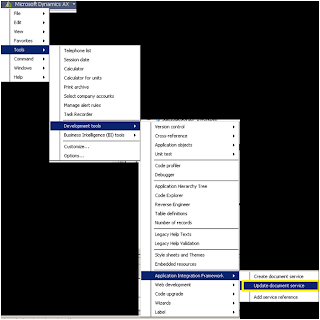
Figure 1 - Dynamics AX -> Tools -> Development Tools -> Application Object Framework -> 'Update Document Service'
Step 2: Select the service class name that will need to be updated (Figure 2 below). The class name will end with '…Service'. Any other class will give an error saying that the class is not a valid service class. Check the two supporting classes options in this feature.
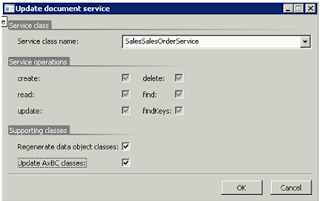
Figure 2 – Updating the Sales Order webservice
Step 3: There may be a number of errors in one of the web services classes (mine was the sales table header class). There seemed to be a problem generating the macros used in the code. I just added them to the class dec of that class and moved on.
Step 4: Regenerate the webservice
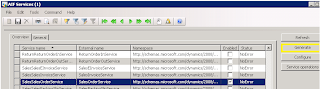
Figure 3 – Regenerate the Sales Order webservice
Step 5: Enable the Action Data Policy fields for the endpoints that are currently using this webservice. Since the data policies are governed on an Endpoint by Endpoint level, this is where these new fields will need to be turned off/on. This can be accessed by going to
-Basic -> Setup -> Application Integration Framework
-Select appropriate endpoint id
-Click 'Action policies' button
-Select appropriate Action policy
-Click 'Data policies' button.
-Enable new fields
Once these steps are complete, the web service's schema will allow for additional fields to be changed to allow these new fields to be integrated into the application.
NOTE: The underlying class may need to be deleted in order for things like string size to properly update in the Schema.
Enjoy!
NOTE: Make sure this procedure is done in the proper layer! AKA don't do it in the USR layer.
Step 1: Update the document service (Figure 1 below).

Figure 1 - Dynamics AX -> Tools -> Development Tools -> Application Object Framework -> 'Update Document Service'
Step 2: Select the service class name that will need to be updated (Figure 2 below). The class name will end with '…Service'. Any other class will give an error saying that the class is not a valid service class. Check the two supporting classes options in this feature.

Figure 2 – Updating the Sales Order webservice
Step 3: There may be a number of errors in one of the web services classes (mine was the sales table header class). There seemed to be a problem generating the macros used in the code. I just added them to the class dec of that class and moved on.
Step 4: Regenerate the webservice

Figure 3 – Regenerate the Sales Order webservice
Step 5: Enable the Action Data Policy fields for the endpoints that are currently using this webservice. Since the data policies are governed on an Endpoint by Endpoint level, this is where these new fields will need to be turned off/on. This can be accessed by going to
-Basic -> Setup -> Application Integration Framework
-Select appropriate endpoint id
-Click 'Action policies' button
-Select appropriate Action policy
-Click 'Data policies' button.
-Enable new fields
Once these steps are complete, the web service's schema will allow for additional fields to be changed to allow these new fields to be integrated into the application.
NOTE: The underlying class may need to be deleted in order for things like string size to properly update in the Schema.
Enjoy!
Subscribe to:
Posts (Atom)